Saturday, March 29, 2008

How to easily play the most recent podcasts on your Apple iPod or iPhone

I am a big fan of my Apple iPod, but I can't figure out how to have it automatically download the most recent podcast from the podcasts I subscribe to. I think there's something I can do in iTunes to get this to work, but I'm just not exactly sure how to proceed.

Dave's Answer:

Downloading and adding podcasts to your iPod and iPhone is relatively straight-forward. But once you are in your car and driving along, it can be tough to figure out what new podcasts you have available. For instance, you may subscribe to several daily podcasts and want to be able to listen to the latest episodes without navigating to the podcast menu, then the podcast name, then the episode.

By using iTunes' smart playlists feature, you can build a list of the most recently added podcasts. You can even filter by audio and video podcasts.

In iTunes, choose File, New Smart Playlist... This will bring up the Smart Playlist dialog:

Apple iTunes Smart Playlist

Change the main setting to "Podcast" and "is true." Then, click on the "+" button to the right to add a second rule. Make this rule "Kind" "contains" "audio" as shown in the image. You can change this to "Video Kind" "is" and "Movie" for video podcasts. Now it should look like this:

Apple iTunes Smart Playlist #2

Then also set the limit to 25 items, so your playlist doesn't include all your audio podcasts. Set "selected by" to "most recently added." Also, make sure "Live updating" is checked.

Now you have a list of the most recent podcasts in iTunes. To get this list on to your iPod or iPhone, make sure it is set to sync all your playlists, or at least select this new smart playlist as one you would want to sync.

Now when you update your podcasts on your computer in the morning, and then sync your iPod, you'll be all set with an easy-to-find playlist of your latest podcasts.

I have a Mac mighty mouse [ed note: actually, it's an "Apple Mighty Mouse"] device and am going crazy without my right-click capability. Is there some

Dave's Answer:

People who are used to right-clicking to open contextual menus might be disappointed with the Mighty Mouse, the mouse that ships with all new Macs, because they think it only has one button. The truth is that the Mighty Mouse is actually a 4 button mouse! It just takes a little configuring.

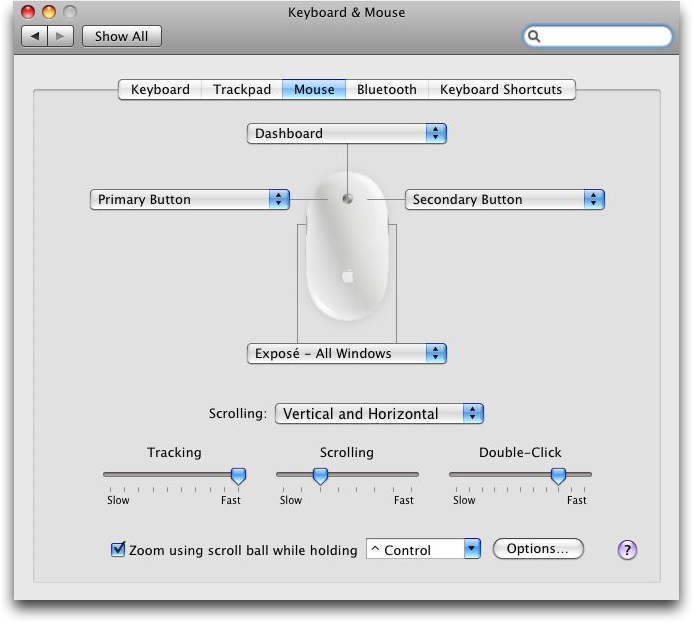
To configure your Mighty Mouse go to the Apple menu and select System Preferences. Click on the "Keyboard and Mouse" icon to bring up the "Keyboard and Mouse" control panel. From here, select the Mouse tab:

Configuring Mac OS X: Mighty Mouse

You can use the pulldown menus to custom configure all the buttons on your mouse. You configure the right button as the secondary mouse button to set the mouse for conventional two-button functionality. Now we can bring up contextual windows by right clicking with the Mighty Mouse. You can just as easily reverse the buttons for easier left hand use.

But wait there's more! You can also configure the other buttons and the scroll ball. By default ,you can display all of your open windows on the desktop by squeezing the two buttons on the side of the mouse, but if you wish you can configure it to perform another action, even run an Applescript. Also note that you can scroll both horizontally and vertically with the scroll ball and even zoom in by pressing the Control key while scrolling. When you're done customizing your mouse, just click on the red close button to close the Control Panel and save your settings.

Like its cartoon namesake, the Mighty Mouse is truly more powerful than it appears!

How can I get songs off my Apple iPhone?

I had my old Mac laptop, an iBook, stolen and now that I have a new one, I realize that I can't get the music off my Apple iPhone which is driving me crazy! Is there some way to sync the iPod music and video portion of my cellphone without having to start from scratch again?

Dave's Answer:

Now that I've been moving everything onto my Macbook Air (which I love!) I am facing the very same issue: when I plug my iPhone into my Air, it just wants to reformat it and start me over from scratch. Not good!

However, all the standard utilities I tried couldn't see the iPhone, which was super frustrating until I bumped into the latest beta release of Senuti, a slick free application that lets you copy music from your iPod onto your computer, even if the two aren't paired.

I downloaded 1.50.2b3 (beta 3 version of 1.50.2) and was thrilled and delighted that programmer Whitney Young has clearly been experimenting with just this capability. When I installed it and plugged in my iPhone, it worked great!

First off, one of the terrific features of Mac OS X is that if you have an app that you downloaded from the net, the first thing you see is this:

Mac iTunes Copy Senuti: Run Downloaded Application

Great feature! Click on "Open" and now you'll get to step through the first run configuration options. I don't make any changes other than to select the following:

Mac iTunes Senuti: Copy Music to iTunes Music Folder

Since it's your intention to also copy the music from your iPhone back into your iTunes library, you'll also want to select this option.

Finally, the app's ready to run and when I plug in my Apple iPhone, here's all my music:

Mac iTunes Senuti: Apple iPhone Library

To copy everything, I just selected it all and clicked the green "Transfer" arrow. Now the transfer started: you see a tiny progress bar on the lower left, but if you click on the little "i" info icon, you get a more informative progress window:

Mac iTunes Senuti: Copying Harry Potter AVI movie from iPhone to Mac iTunes

after a while - depending on how much music and how many movies you have (here, notice, I'm copying the Harry Potter movie from my phone to my Macbook) - you'll finally see this:

Mac iTunes Senuti: Done Copying Music and Video Movies from iPhone to iTunes

Hurray! Copied. Sure enough, go into iTunes and:

Mac iTunes Senuti: iTunes showing music copied with Senuti from an Apple iPhone

That's the answer. In terms of grabbing your address book, SMS text, and related, I haven't yet found a solution for, but perhaps someone else can offer up a suggestion?

How do I convert a home movie for my Apple iPhone?

My digital camera has a cool feature: it can take little movies. They're not as good as a real video camera, but my kids love mugging for me and the results are often quite hilarious. Like "America's Funniest Home Videos" caliber. How do I put them on my Apple iPhone so I can share them with my friends?
Dave's Answer:

Though an initially daunting task, this is rather surprisingly easy, though there are a number of steps required. It all revolves around a little-discussed feature of the ubiquitous Apple movie player, QuickTime Player.

The first step, however, is to get the movie onto your computer which can be done by hooking up your camera to your Macintosh then turning it on. The useful application Image Capture launches, and a single click on "Download All" moves all the pictures and movies from the camera onto your computer. Easily done.

Movies, however, end up in "MPG" format, where MPG actually is "MPEG4", the Motion Picture Experts Group encoding format that's somewhat related to JPEG, the Joint Photographic Experts Group format. A typical file might be something like MOV00285.MPG, as I recently created on my Sony digital camera.

Once saved, you can open it by double-clicking the file. If QuickTime Player isn't launched, Ctrl-click instead and choose "Open With -->" and then choose QuickTime Player instead.

Choose File --> Export for Web... and you get a very interesting list of output file format options:

QuickTime Player: Export for Web: Options

There are three different output formats you can select, two of which are specifically customized for the iPhone itself. The first is for when the Apple iPhone is using wifi and has a high-bandwidth connection. The second is for the clunkier EDGE network, which just doesn't have the speed capabilities. Of course, both of these are intending that you'd watch the video from a Web host on your iPhone and we're talking about actually copying it onto the phone itself, so we'll want the higher bandwidth option.

Finally let the app know which "key frame" to use (e.g., the image shown when you aren't playing the movie, just looking at the file) and click "Export'.

Anywhere from a few seconds to a minute or two later, you'll have a new file in the output folder (mine is my Desktop, yours might be configured different) that has the same name as the original MPG file. In this case, it's MOV00285 and here are its contents:

QuickTime Player: Export for Web: Folder of Output Files

Almost done.

The last step is to drag the ".m4v" movie file into iTunes, where it'll promptly be filed in "Movies". You can see I've done that here (top right):

Mac OS X: Apple iPhone: iTunes Music Library: Movies

That's really all you need to do. Next time you sync your iPhone, the movie will be copied if you have already selected "automatic sync" with your movie lib. If you haven't, drag the movie icon within the iTunes library to your iPhone next time you've got it plugged in and... voila!

Missing Features

Notably, the iPhone is missing a few features that make the phone seem not-so-complete. The first and biggest surprise when the phone was announced is that it wouldn't be 3G and utilize HSDPA, rather it would be a 2.5G phone and use the EDGE network. Given my experience with how quickly the battery was used up on the Samsung Blackjack, I'm not terribly surprised. I would predict that battery life of the phone would be noticeably worse (25% or more) had Apple included HSDPA in the phone.

The ability to use Bluetooth in any meaningful way other than during a phone call is another complaint. The phone lacks the ability to utilize stereo headsets (A2DP), can't tether with another Bluetooth device to provide internet access and can't sync contacts, calendar entries, pictures or music over Bluetooth. Granted, you probably wouldn't want to sync a firmware update or a movie over Bluetooth given its paltry 3Mb/s throughput, but just to update contacts and calendar entries would be sufficient for most.

Likewise, the next most requested missing feature is real GPS for turn by turn directions. The Google Maps widget does provide some turn by turn information, but if you were to miss a turn, you would need to replot your route in order to get rerouted driving directions.

The internet forums are abuzz with people loudly complaining about the lack of Adobe's Flash and Sun's Java platforms on the phone. While one can understand why, as they are both CPU intensive - and therefore drain the battery quicker - it is still a large chunk of functionally that is present on the "real internet"� that wont be accessible from the phone.

The lack of a replaceable battery is a big issue for those who will use the phone often. Estimations are that the battery in the phone may only last 350-400 cycles (charge, discharge). If you have to charge the iPhone every night, that's only about 13 months of usage. The Apple battery replacement for the iPhone is $85 including shipping, and that does not include the user of a rental phone while yours is in the shop. And given that you might not get your phone back, you'll get someone else's that was formatted, you'll need to sync and make sure that all your data has been backed up from the phone.

Finally, smaller features like instant messaging through AIM, MSN or Yahoo, multimedia messaging (MMS), and being able to shoot video with the camera are also small sticking points for those not convinced of the iPhone's worth.

AT&T's Network - From Fine Edge to Broken Edge

During the week prior to launch, many folks in major metropolitan areas noticed their EDGE speeds increasing to very good speeds. Reports were that 60-75Kb/s downstream speeds had been boosted up close to 200Kb/s. This represented a very large jump both in raw speed and usability.

The theoretical max data throughput for EDGE is 473Kb/s, though I'd expect AT&T to max out around 200Kb/s as that is a reasonable speed which will provide adequate performance for web pages and limited multimedia.

It's not the EDGE technology itself that is slow, but rather the infrastructure that the data travels over between the towers to the internet. Voice calls are obviously the priority, and data traffic has to deal with slow transmissions. AT&T engaged in a project, informally named "Fine Edge"�, that would provide more bandwidth to the towers in an effort to give EDGE a much needed boost given the current slow speeds. Running fiber and furnishing the towers faster throughput speeds to the internet results in a much needed speed boost.

However, real life doesn't always seem so peachy. On the Monday after launch, I proceeded to bring my iPhone to work (as its now my main cell phone and I don't go anywhere without my cell phone). I did five demonstrations throughout the day to my coworkers as they came by asking about the phone, so I showed its capabilities.

However my single afternoon demonstration was thwarted by a problem with AT&T's EDGE network. As reported by MacRumors forums and HowardForums, large parts of AT&T's EDGE data network were offline and inoperable the first business day after launch. Perhaps the overload of 500,000 new devices on the network brought AT&T's system to its knees.

The network was operational the rest of the week without any issues.

User Experience - Internet and Email

The iPhone uses Apple's Safari web browser to get online and browse the web. As I noted previously, the browser does not support Java or Flash, which makes for a somewhat muted experience. Likewise, there are memory limitations - any one file (HTML, CSS, Image, etc) cannot be larger than 10MB. If the javascript in the webpage takes longer than five seconds to execute, an exception will be thrown.

The performance of Safari is satisfactory when compared to a desktop experience, but it will suffice for the phone. Safari does seem to take a while to load graphics intensive web pages, and web pages with lots of small graphics will suffer more than a web page with one or two large images. It appears the overhead to create a connection and request an object is rather large, especially when using the EDGE network. EDGE's latencies can be as high as one second, usually somewhere between one half and three quarters of a second. So that means for each object requested it will take that long for the server on the other end to see the request and respond with the data.

The top of the page has the URL field as well as a bookmark add button and a reload button. Once you scroll down, this bar disappears to provide more real estate for the web page to display. You can scroll back to the top and view the URL bar again by tapping the top bar (where the time and battery indicator are). At the bottom of the screen are the forward and back buttons, the bookmark list, and the button to switch between pages using multi-page browsing.

Multi-page browsing works surprisingly well. Since the screen is too small for tabs at the top of the browser like Firefox or Safari, the controls to add, close or switch between pages (essentially tabs) is on a separate screen. You can have up to eight pages open, and to switch between them you just drag your finger across the screen, similar to viewing a set of photos on the phone.

The iPhone supports POP3 and IMAP email accounts, as well as several major email services (AOL, Yahoo, GMail and .Mac). The POP3 and IMAP services work sufficiently well, however my experience with Gmail wasn't as pleasant. First is that the iPhone doesn't support conversations like the web interface to Gmail. The phone functions in the same manner as the POP3 version of Gmail (which works with your mail reading application), which makes it lose some of its neat features. Also with Gmail, because of the way the system is designed, all sent messages will appear again in your inbox, even if you turn the "CC myself"� feature off.

The phone does not support corporate push solutions (yet). There is a huge demand for the feature however, and I wouldn't be surprised if we see a solution sometime in the next six months.

The other issue that bothered me was that you could only set intervals of 15, 30 or 60 minutes to automatically check email. Apple probably didn't want you checking your email every five minutes because it would eat up battery life quicker, so we're hamstrung if we want to check it any more frequently than fifteen minutes.

I didn't have any problem reading PDF or Word attachments. The Word documents were passable; there was no support for change tracking information that was part of the sent file. And in some cases, artificial page breaks did not show up correctly. Links and tables in the email worked perfectly. The PDF document was 82 pages, and there was no quick way to get to the end of the document other than to flick your way there.

The Excel document was a bit troublesome. It wasn't that large of a document, but zooming in on the sheet took 10 seconds for it to be ready again. Once I was zoomed in it worked fine however, and I was able to pan around again.

Finally, I found the animation for deleting an email to be somewhat humorous. The icon is a little trash can, and when you touch it, it opens up and sucks the email into the garbage. Pretty neat.